
Average Ratings 0 Ratings
Average Ratings 1 Rating
Similar Products
-
ScreencaptScreencapt allows you to record the entire screen or a selected area. You can also record a specific window. Screencapt is the ideal screen recorder because of its flexibility. Using the integrated audio recording you can also add your commentary or system sound directly into the screen recording. This is particularly useful when creating explanation videos or presentations. Screencapt's ability to record a webcam is a special feature. You can now add your comments and reactions to the video. This makes your screen recordings more personal and professional. Screencapt offers advanced options to record the cursor. You can choose to hide the cursor or add special effects to highlight specific actions. This is especially useful for software tutorials and demonstrations where a clear cursor view is required.
-
Curtain MonGuard Screen WatermarkCurtain MonGuard Screen Watermark is an enterprise solution for displaying screen watermarks that administrators can enable on users' computers. This screen watermark can display various user information, such as the computer name, username, and IP address. The purpose of this watermark is to effectively grab the user's attention and serve as a reminder before they take a screenshot or photograph the screen to share the information with others. The key benefit of Curtain MonGuard is that it encourages users to "think before sharing" sensitive information. If the content being shared contains confidential company data, the watermark can help trace the source of the leaked information back to the user responsible. This allows organizations to hold users accountable and mitigate the consequences of data breaches or unauthorized information sharing. Key features: - On-screen watermark - Full screen-watermark - Application screen-watermark - Supports over 500 Applications - Self-defined content of watermark - Screen-watermark by condition - Central administration - Integration with Active Directory - Uninstall password for client - Password management - Admin delegation - Self protection for the software
-
Monitask🚀 Supercharge Your Team's Productivity! 🚀 Introducing the ultimate productivity hack for the modern workforce. Whether your squad is crushing it in the office, remote, or rocking that hybrid life, we've got you covered. 📊 What's in the box? Smart Time Tracking: Auto clock-in/out. No more "I forgot" excuses! Random Screenshots: Catch those Insta-scrolling moments Web Detective: Know if they're coding or... "coding" 😉 Real-time Mission Control: See who's winning at work Ninja Mode: Stealth monitoring for the win Perfect for: Startups, agencies, outsourcing pros, and corporate giants 💡 Why it's awesome: Turn productivity data into team superpowers Spot workflow kryptonite and zap it Keep it ethical: Privacy for employees, insights for you 🕵️ Ninja Mode: Psst! Our stealth feature lets you observe natural work habits. It's like having a productivity crystal ball! 🔒 Fort Knox-level security included. Because we're paranoid, so you don't have to be. Ready to transform your team into productivity superheroes? Let's go! 🦸♂️🦸♀️
-
ClickLearnClickLearn simplifies complex business processes using popular software. You can create multi-format learning materials in any language and publish them to a 24/7 learning portal with just one click. A video walkthrough of the process, with narration in your preferred language. Put your learning to the test. This interactive simulation of your workplace allows you to test your knowledge without any hints. Interactive simulation of your workplace environment that guides you through the process. This guide is step-by-step. ClickLearn wrote this guide with perfectly cropped screenshots. ClickLearn Assist can be your go-to helper when you are stuck, need process help, or want to try a new process in the live system. You don't have to worry about making another mistake. All your learning materials can be auto-translated with a click of a button
-
PoplPopl is the leading solution for digital business cards and contactless lead capture, built for today’s professionals and teams. Instantly share your info—phone number, email, LinkedIn, calendar, and more—using a tap, QR scan, or custom link. Designed for fast-paced environments like trade shows, events, and on-the-go meetings, Popl empowers users to collect leads instantly, tag contacts, add notes, and push them directly into CRMs like HubSpot, Salesforce, Zoho, and thousands more. With a powerful team dashboard, organizations can manage user access, enforce brand consistency, monitor engagement, and streamline onboarding through Azure or CSV import. Integrated analytics and follow-up automations ensure every new connection drives real business impact. Be part of the future of networking—powered by Popl.
-
FathomFathom is the free AI meeting assistant that instantly records, transcribes, and summarizes your Zoom, Meet, or Microsoft Teams meetings so you can focus on the conversations instead of taking notes. Fathom is an AI-driven meeting assistant that automatically records, transcribes, and summarizes your virtual meetings across platforms like Zoom, Google Meet, and Microsoft Teams. Designed to save time and increase productivity, Fathom generates actionable summaries in under 30 seconds and syncs with your CRM for streamlined follow-ups. The platform's unique features include real-time transcription, meeting highlights, and the ability to share clips, making it ideal for teams looking to improve meeting efficiency and reduce administrative work.
-
BoozangIt works: Codeless testing Give your entire team the ability to create and maintain automated tests. Not just developers. Meet your testing demands fast. You can get full coverage of your tests in days and not months. Our natural-language tests are very resistant to code changes. Our AI will quickly repair any test failures. Continuous Testing is a key component of Agile/DevOps. Push features to production in the same day. Boozang supports the following test approaches: - Codeless Record/Replay interface - BDD / Cucumber - API testing - Model-based testing - HTML Canvas testing The following features makes your testing a breeze - In-browser console debugging - Screenshots to show where test fails - Integrate to any CI server - Test with unlimited parallel workers to speed up tests - Root-cause analysis reports - Trend reports to track failures and performance over time - Test management integration (Xray / Jira)
-
CivicPlus Social Media ArchivingThe most reliable archiving software in the world for managing records compliance and risks for public entities. CivicPlus Social Media Archiving is a software that connects directly with your social networks in order to capture, preserve and archive all content posted and engaged in by your organization in context and near-real time. All of this information is stored in a secure, easy-to-use archive that allows you to manage your online communications, as well as help your organization comply with public records laws and regulations. Social media archiving ensures that your organization's communications will be saved, so you can easily respond and comply with public records laws. All content, including deleted or edited posts and comments, can be captured and preserved. Replay recordings in their original context, and ensure their authenticity using digital signatures.
-
Coursebox AIEmpower your content transformation with Coursebox, the leading AI-driven eLearning authoring tool. Our platform streamlines the course development process, enabling you to create a well-structured course in a matter of seconds. Once the foundation is set, you can easily refine the content and add any final touches before it's ready for deployment. Whether you're looking to distribute your course privately, sell it to a broader audience, or integrate it into your existing LMS, Coursebox makes it effortless. Designed with a mobile-first approach, Coursebox ensures that your learners stay engaged and motivated through rich, interactive content—complete with videos, quizzes, and other dynamic elements. Leverage our branded learning management system, featuring native mobile apps, to deliver a seamless learning experience. With options for custom hosting and domain personalization, Coursebox offers flexibility to meet your specific needs. Ideal for both organizations and individual educators, Coursebox simplifies the management and segmentation of learners, allowing you to craft personalized learning paths and scale your training programs quickly and efficiently.
-
CrankWheelCrankWheel allows you to share your screen while on a call. This makes it easy to create engaging presentations. You can send a link via email or SMS to the viewer and they will be able to view it in any browser on any device. CrankWheel was designed for simplicity and can be shared with customers to facilitate business deals. CrankWheel can be used to complement calls from insurance agents, mortgage advisors and solar advisors as well as educators and customer support specialists. CrankWheel is easy to integrate with websites and allows users to add a Demo button to receive quick notifications. We can show you if they are paying attention. Our Chrome Extension has enabled over 50,000 users to share their screens with prospects, regardless of their technical skills or device choice. CrankWheel can be used on old browsers and obscure devices, even with poor network connections. It works on Mac, Android, iOS, Blackberries, Internet Explorer, and Android.
Description
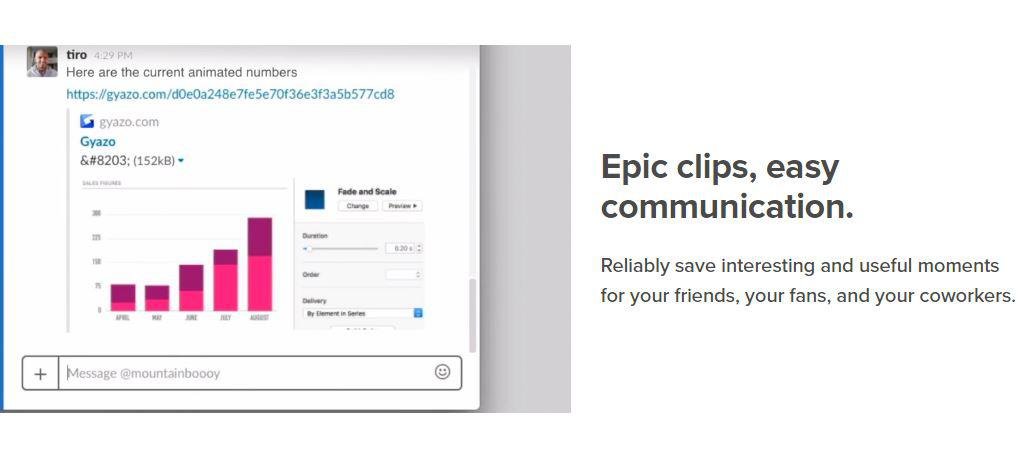
Capture screenshots, GIFs, and replays that are immediately shareable, ensuring you don’t miss any important moments on your screen. Once you’ve made your captures, we generate and copy a unique private link that’s ready for you to paste and share without delay. This allows you to reliably save intriguing and useful moments for your friends, fans, and colleagues alike. Each capture, along with its relevant details, is securely stored in your account for easy access. By upgrading to Gyazo Pro, you can efficiently search and organize all your captures. Whether it's a screenshot or a GIF, it serves as an ideal means to convey what you see. New links for screenshots are automatically copied, enabling you to share them instantly across various platforms. Sometimes, written explanations can lack clarity or take too long; sending a screenshot or GIF communicates your message with perfect clarity. There’s a constant demand for fresh content on blogs, social media, and websites; capture and edit your visuals in mere seconds to create impactful content ready for immediate posting. Every item you capture is privately tagged, making it simple for you to locate in the future, enhancing your ability to engage and connect with your audience effectively. As you continue to collect these visuals, you’ll find that sharing and creating becomes an effortless part of your workflow.
Description
Capture images or text from your computer screen by taking a snapshot. You can utilize the Snipping Tool to edit or annotate your captures before saving and sharing them. Additionally, Windows 10 offers another screenshot application that you might find useful. Upon launching the Snipping Tool, you will be greeted with a prompt and a keyboard shortcut for Snip & Sketch. For further details about this application, refer to the guide on how to take and annotate screenshots on Windows 10. You can draw a free-form shape around any object, or drag the cursor to create a rectangular selection. Alternatively, you can choose to capture an entire window, like a dialog box, that you wish to screenshot. Once you take a snip, it will be automatically copied to the Snipping Tool interface, allowing you to make adjustments before saving and sharing your work. To access the Snipping Tool, click the Start button, input "snipping tool" into the search bar on the taskbar, and select it from the generated list, or alternatively, swipe from the right edge of the screen and enter "snipping tool" in the search field. This tool makes it easy to capture and modify screenshots with ease.
API Access
Has API
API Access
Has API




Integrations
Centercode
Google Cloud Platform
MCPTotal
Microsoft 365
Unity
Integrations
Centercode
Google Cloud Platform
MCPTotal
Microsoft 365
Unity
Pricing Details
$3.99 per month
Free Trial
Free Version
Pricing Details
No price information available.
Free Trial
Free Version
Deployment
Web-Based
On-Premises
iPhone App
iPad App
Android App
Windows
Mac
Linux
Chromebook
Deployment
Web-Based
On-Premises
iPhone App
iPad App
Android App
Windows
Mac
Linux
Chromebook
Customer Support
Business Hours
Live Rep (24/7)
Online Support
Customer Support
Business Hours
Live Rep (24/7)
Online Support
Types of Training
Training Docs
Webinars
Live Training (Online)
In Person
Types of Training
Training Docs
Webinars
Live Training (Online)
In Person
Vendor Details
Company Name
Gyazo
Founded
2007
Country
United States
Website
gyazo.com/en
Vendor Details
Company Name
Microsoft
Founded
1975
Country
United States
Website
support.microsoft.com/en-us/windows/use-snipping-tool-to-capture-screenshots-00246869-1843-655f-f220-97299b865f6b
Product Features
Screen Recording
Annotations / Drawing
Audio Capture
Backup
Collaboration Tools
File Sharing
Multi-Screen Recording
Screen Capture
Speech-to-Text
Video Editing
YouTube Uploading

